Create a payment plan
Set up a payment plan template with its installments, schedule, down payment and discount, then publish it.
All docs
A payment plan in the app is a template. You set the rules once, then choose which products it applies to. Go to Payment plans and click Create plan.
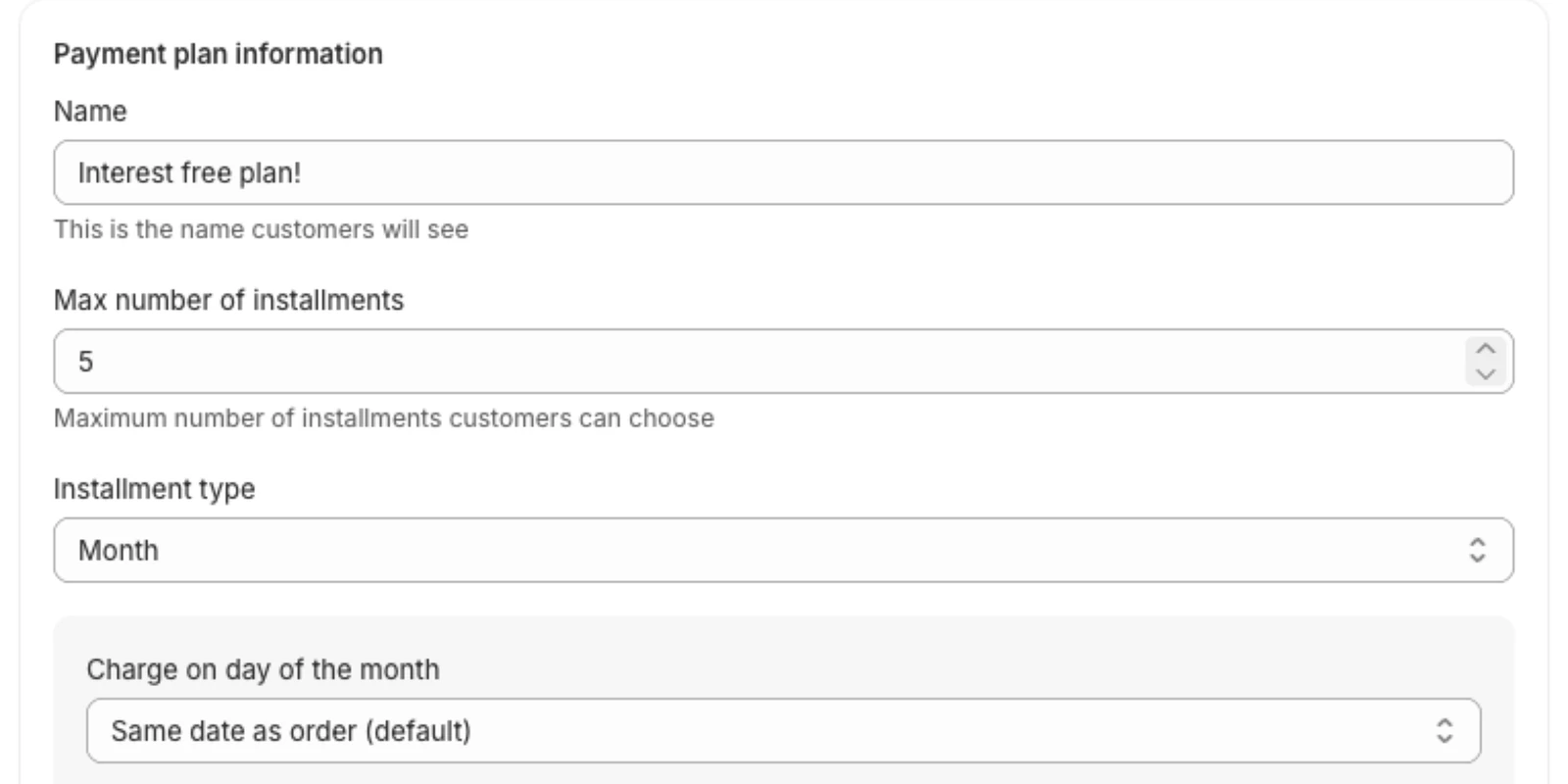
Payment plan information
- Name. Customers see this on the product page and at checkout, so keep it clear, for example "Interest free payment plan".
- Max number of installments. The most payments a customer can split the price into, from 1 to 15. Customers choose any number from 2 up to this maximum on the product page. The count includes the down payment, so a maximum of 4 means a down payment at checkout and up to 3 more payments.
- Installment type. How far apart payments fall: a day, a week or a month. See Installments and intervals.
- Charge day. Weekly and monthly plans can charge on a fixed day of the week or month, with an optional minimum gap before the first charge. See Charge on a fixed day.
- Installment amount. Always "Outstanding total / installments left": whatever is still owed, split evenly across the remaining payments.
Down payment
The first installment is taken at checkout. Choose Auto, Percentage or Fixed. See Down payments.
Discount
Optionally take a percentage or a fixed amount off the price for customers who choose a payment plan. Leave it on No discount to charge the same price as buying outright.
Summary
The summary beside the form updates as you edit, so you can check the plan reads the way you expect before saving: the maximum installments, the interval, the charge day, the down payment and any discount.
Save, then publish
- Click Save. A new plan isn't offered anywhere yet.
- Add the products or rules it applies to under Eligibility. See Apply a plan to products.
- Click Publish. The app goes through your catalogue and adds the plan to every matching product in Shopify.
You can't publish a plan with no products or rules. While a sync is running the form is locked.
Editing a published plan
Saving changes to a published plan marks it as needing a sync. Click Sync to push the changes to your products. Orders already placed keep the terms they were bought on.